Profile Update Process
Introduction
Profile updates are sent by Scouts, and allow you to provide your child's most up to date information directly to their Scout Group. Through profile updates, you can do the following:
- Add or update your personal information
- Add or update emergency contact information
- Provide details regarding your child's medical conditions
- Provide school specific permissions for your child
This guide explains each stage of the process, and provides a demonstration video at the end.
How to I get a Profile Update?
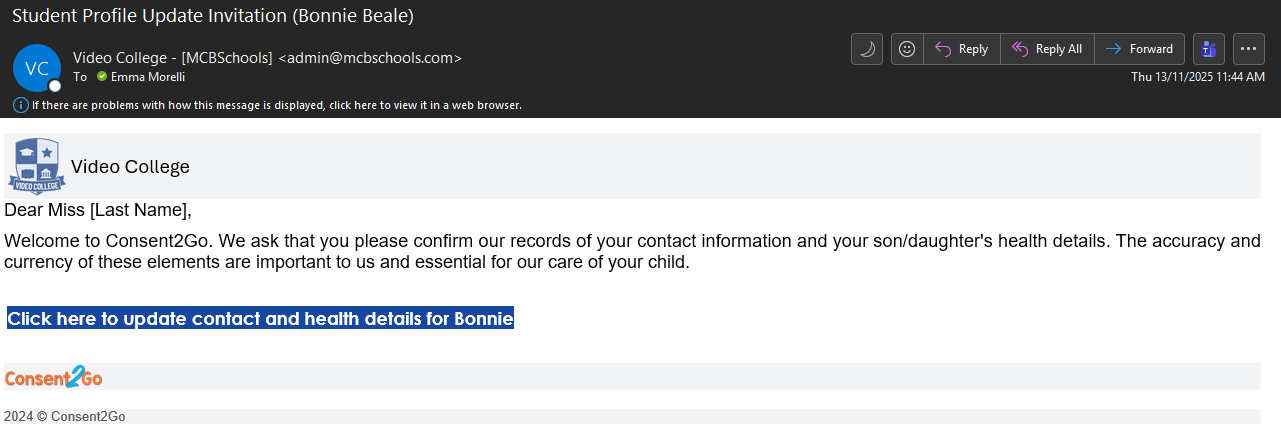
Your Scout Group will send you a profile update link via email, when they require you to update your details. This email will have the subject line "Student Profile Update Invitation (Student Name)" and will contain a linkto begin the process.
For example:
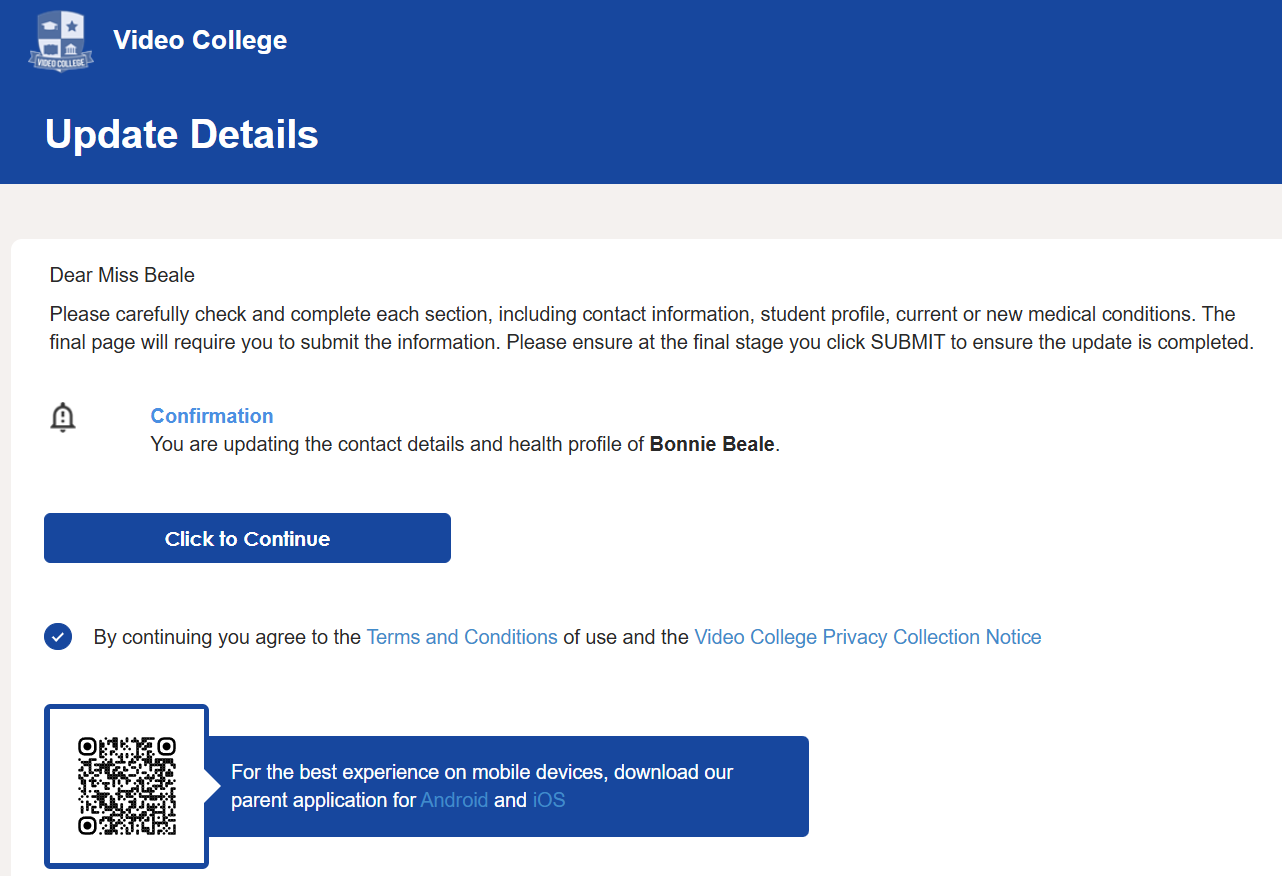
Clicking on the link within this email will start the Profile Update, and bring you to a page similar to the below:
Alternatively, if you use the Consent2Go Parent app, you can complete a profile update at any time.
Please see the link below to our Parent App guide, that will assist you with this process:
Guide to the Consent2Go Parent App
Starting a Profile Update & Completing Multi-Factor Authentication
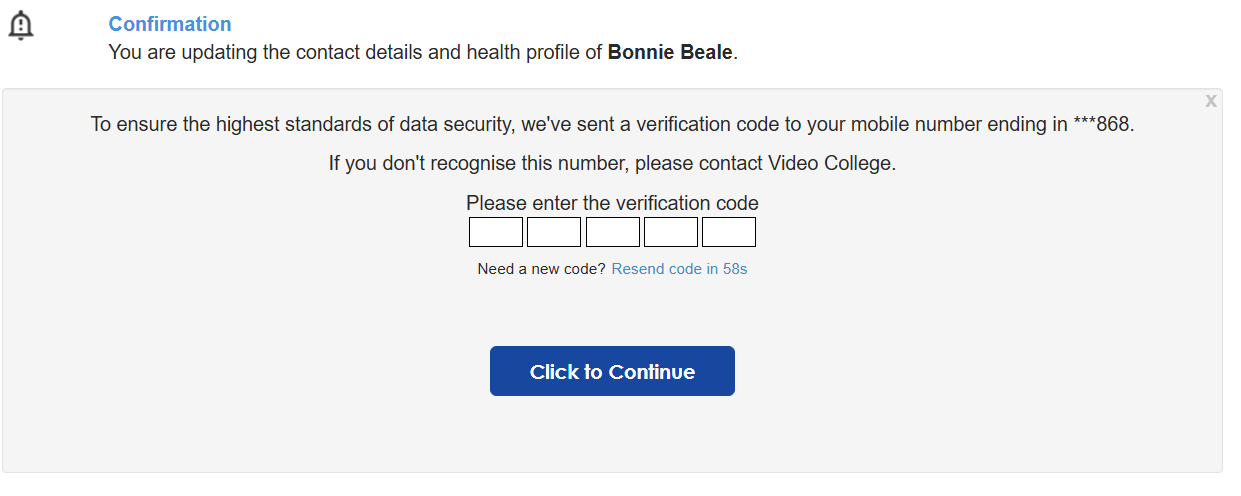
Once you have opened the email, and select "Click to Continue", you will be prompted to complete the verification process. This ensures data security, and protects the information within your profile.
Selecting this button will send a code to the mobile we have on record. Simply enter the code in these fields, and select "Click to Continue" once more to proceed.
Stages of a Profile Update
There are 5 stages in a profile update
- Parent Information
- Care Details
- Medical Conditions
- Permissions
- Review & Submit

Parent Information
Here you can view/update your contact details, including phone number, email or address. As well as your child’s Emergency Contact details.

Once you are ready to move to stage 2, click “Next” at the bottom of the page.
Care Details
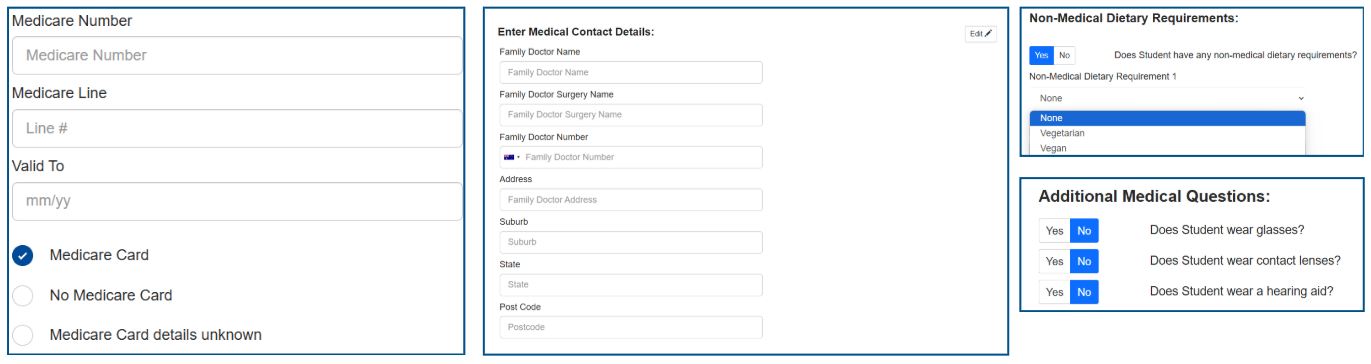
This stage contains your Medicare Card Details and Medical Contact Details (if applicable). It also allows you to provide any Non-Medical Dietary Requirements for your child, and answer additional medical-based questions such as “Does [Student] wear glasses”.
Once you are ready to move to stage 3, click “Next” at the bottom of the page.
Medical Conditions
This stage enables you to view, edit, or add any medical conditions your child may have, ensuring that the school is informed and can provide the best care for your child.
To Add a condition, select “Yes” to “Does [Student] have any medical or mental health conditions?”. Then select “Add Condition”. This will present you with a list of the included conditions within Consent2go. If none of the listed conditions are suitable, please use the Other 1/2/3 options.

Medical Conditions within Consent2go request the below information:
- Severity
- Symptoms
- Allergens
- Medication (if required)
- Care Instructions
- Condition History
- Condition Specific Questions
It also allows you to provide any documents for the condition, such as an Action Plan.
If a condition has been previously added, you will have the ability to View, Edit or Remove the condition.
 Once you are ready to move to stage 4, click “Next” at the bottom of the page.
Permissions
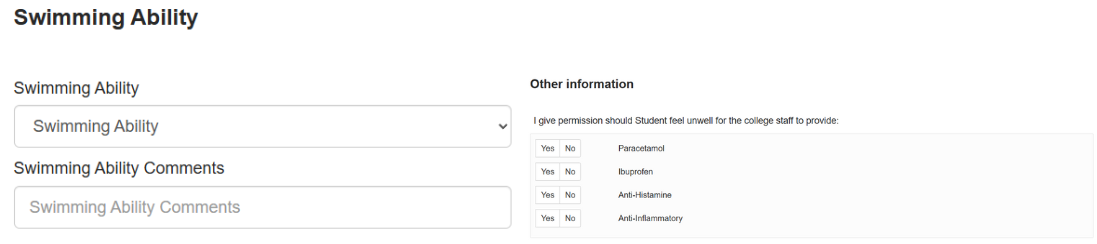
This is the final stage that requires updating, and allows you to provide or update your child’s Swimming ability, Immunisation Status and give Scout specific permissions such as photos or over the counter medications.
Once you are ready to move to the final stage, click “Next” at the bottom of the page.
Review & Submit
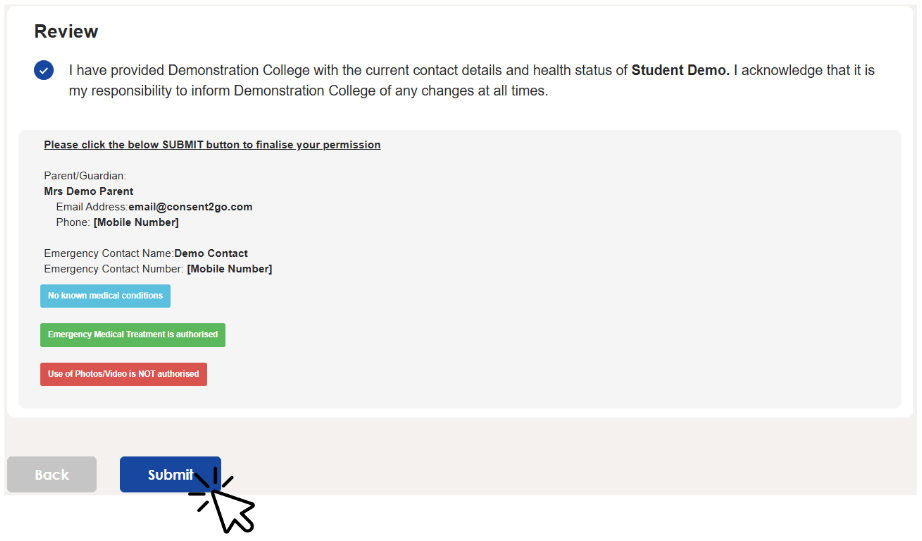
Now that you have worked through the profile update, you can review the information and send it to the school by agreeing to the statement shown and clicking “Submit”.
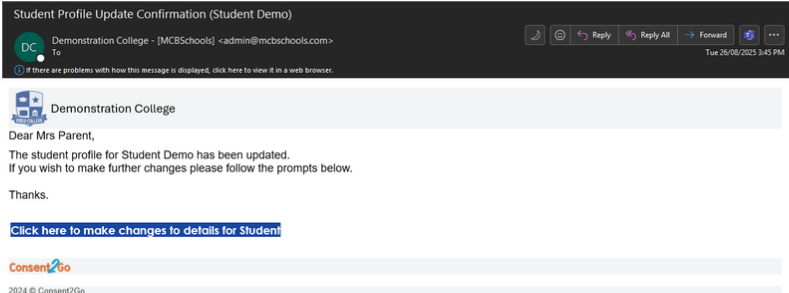
Confirmation Email
Once you press submit, you will be sent a confirmation email thanking you for updating the youth member's profile. This also contains a link in case you need to action a new update at any time.