Add a shared mailbox on OWA
1.Open Outlook web and login
2. Click 'File' on the top left corner of the page
3. Click on ' Account info' from the drop-down list
4. Click on 'Shared with me'
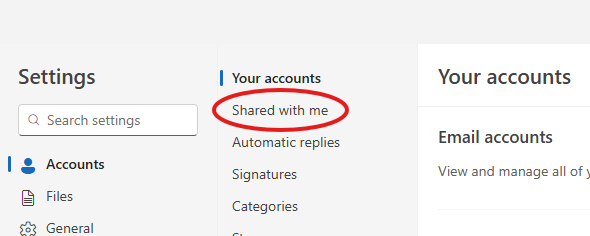
5. Click on 'Add'
6. Type your shared mailbox and select the correct one from the drop-down menu, and click continue
Good job. The shared mailbox should now show under your primary email address!
Related Articles
Adding Shared mailbox under primary mailbox (New Outlook)
When a user wants to add a shared mailbox so it displays under your primary mailbox, please follow the instructions: Firstly, sign in to your outlook web account though the link: https://outlook.office.com with your scouts email address and password. ...Adding a Shared Mailbox to your Mobile Device
Please note the below steps are for the Outlook Mobile Application which is available on iOS and Android in the App/Play store free from Microsoft, due to the nature of how a shared mailbox function setup via the Outlook app is the only supported ...Accessing a shared mailbox in Outlook classic using advanced settings
Setting up a shared mailbox in the Outlook desktop App Launch the Outlook desktop App and log into outlook using your MS365 email and password for access. If you do not have an email account setup in Outlook, you will be prompted to set up an account ...Add your profile photo to Microsoft 365
You can add or change your profile photo in Office 365 from Office.com, or while using Office 365 applications on your computer or in a browser on your phone. Your photo will appear everywhere there's a profile photo circle in Office 365. To add your ...Setup your Scouts SA email on your mobile device
Setup your Scouts SA email on your mobile device This guide will assist you to add your Scouts SA email account to a mobile device using the free Microsoft Outlook app (available from the Play/App store). Please visit the app store to ...