How to Send Profile Updates to Individual Students
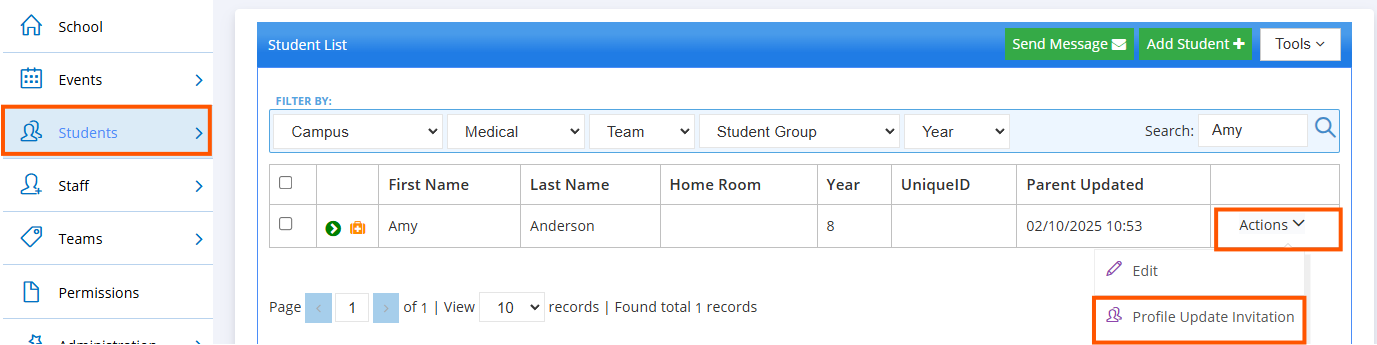
To send profile updates to individual students, find the student through the ‘Students’ tab, then click the ‘actions’ bar at the right of the screen. From the drop-down box, select ‘Profile Update Invitation’.
The pop-up display for this option, allows you to choose an expiry date for the invitation, and review the email note.
Related Articles
How to Send Profile Updates in Bulk
To send profile updates in bulk, navigate to the ‘Students’ tab. Once there, click on the ‘Tools’ dropdown box to the top right of the screen. Then select ‘Profile update to all’. A pop-up will display, asking you to choose how long you would like ...Profile Update Process
Introduction Profile updates are sent by Scouts, and allow you to provide your child's most up to date information directly to their Scout Group. Through profile updates, you can do the following: Add or update your personal information Add or update ...I am a parent. How do I access Consent2Go?
Your Scout Group will send an invitation to the email address they have on file for you. Clicking the link in the email will take you to your child’s profile, where you can review and update their information. You can access Consent2Go via a mobile ...Section Leader - Quick Reference Guide
Terminology For now there is some school based terminology to be aware of Participant = Member (both Youth and Adult) Year level = Section Staff = Adult Leader / Adult role in the system Participant Group/Team = Unit, Patrol or Project Patrol Group ...Group Leader - Quick Reference Guide
Terminology Participant = Youth Member Staff = Leader Year Level = Section (e.g. Joeys, Cubs) Incursion = Activity held at the Hall Excursion = Activity held away from the Hall Participant Group/Team = Groupings of Participants such as Units, ...